
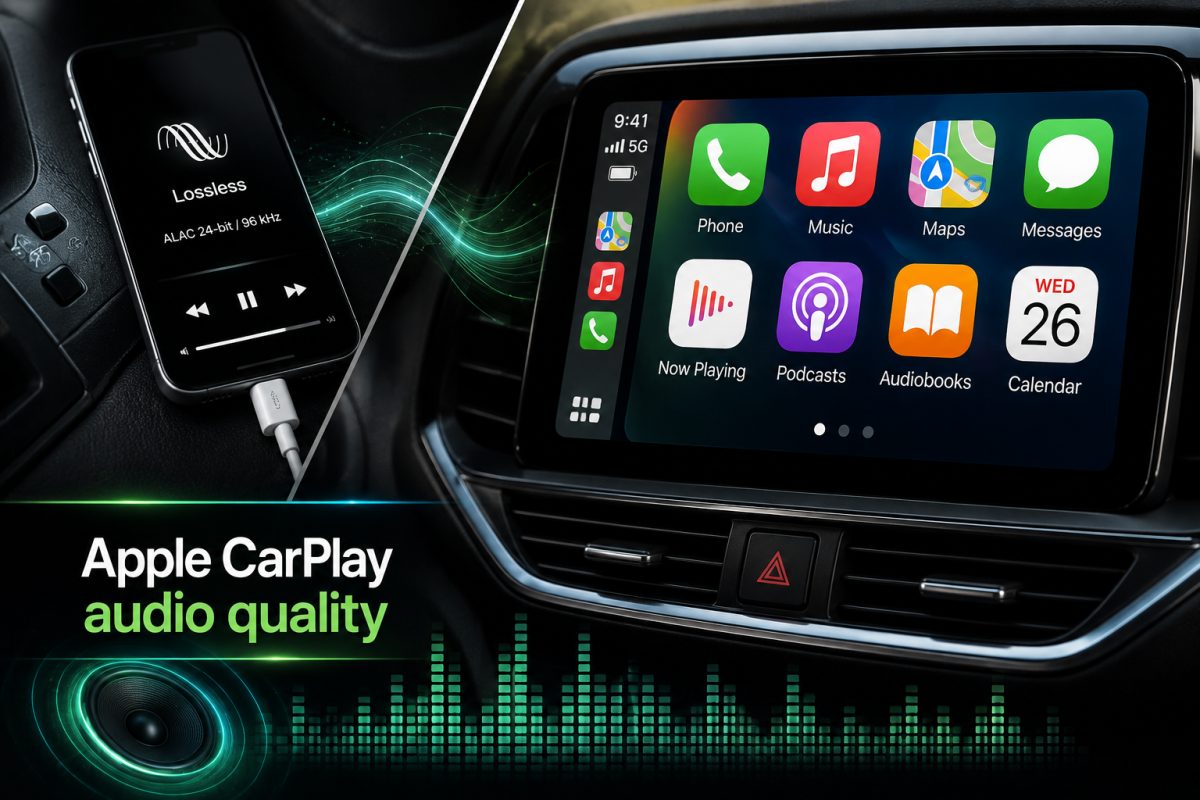

Engadget's new how-to guide outlines specific steps drivers can take to fix disappointing Apple CarPlay sound quality.
Engadget published a practical guide on August 30, 2026, explaining how iPhone owners can improve Apple CarPlay audio quality, pointing to Apple's own guidelines that only a wired USB connection supports lossless playback through the system. The article, titled "How to improve your audio quality on Apple CarPlay," addresses a widespread issue in which drivers find that music streamed through CarPlay sounds worse than expected, even in vehicles equipped with capable sound systems. Rather than covering a single news event, the piece functions as a service-oriented explainer aimed at helping consumers troubleshoot common settings and connection problems.
The guide draws directly on Apple's published documentation for Apple Music playback over CarPlay, combining that technical guidance with broader user experience to produce a checklist-style set of recommendations. Engadget frames the article around the idea that CarPlay is capable of delivering high-quality sound, but only when the iPhone sends it the right signal through the right connection.
Wired Connections Remain Essential For Lossless Playback
According to Engadget, Apple's guidelines for Apple Music through CarPlay confirm that only a wired USB connection allows lossless audio playback. Wireless CarPlay, by contrast, routes audio through compressed streams, meaning Apple Music's Lossless and Hi-Res Lossless formats cannot be fully delivered when the phone is paired wirelessly.
This distinction forms the centerpiece of Engadget's recommendations. Drivers who prioritize audio fidelity are advised to use a wired USB connection rather than wireless CarPlay, particularly if they have already enabled lossless streaming or downloads within Apple Music. Other CarPlay guides in the broader ecosystem echo this point, noting that wireless connections typically carry more compressed audio streams, while wired connections can support higher bit-rate playback with fewer drop-outs.
Apple Music Settings And Processing Features Affect Sound
Beyond the physical connection, Engadget's guide highlights how settings within Apple Music itself shape what CarPlay ultimately plays. Enabling Lossless Audio requires navigating to the Audio Quality section within the Music settings on an iPhone, where users can also adjust streaming quality for cellular, 5G and Wi-Fi connections. Without enabling this setting, CarPlay will only receive standard compressed audio, regardless of how the phone is connected to the car.
The article also points to processing features such as equalizer presets and Sound Check, a feature that normalizes volume levels between tracks. Community discussions and independent guides consistently note that Sound Check and aggressive EQ settings, such as Bass Booster or Late Night, can make audio sound flat or unnatural. Turning off these features, or reducing their intensity, is a common recommendation for listeners seeking more accurate sound reproduction through CarPlay.
Downloading tracks directly onto the iPhone at the highest available quality setting is another step highlighted in the broader guidance surrounding this topic. Doing so reduces dependence on cellular streaming, which can introduce inconsistent quality or buffering issues during a drive, particularly in areas with weaker signal coverage.
Cable Quality And Car System Settings Play A Supporting Role
Engadget's guide also addresses the physical hardware involved in delivering sound to a car's speakers. Using a reliable, properly connected USB or Lightning cable is presented as a basic but often overlooked requirement for wired CarPlay. Damaged or low-quality cables can produce intermittent connections, audible drop-outs or noise, issues that many users mistakenly attribute to CarPlay itself rather than to their equipment.
Separate guidance on CarPlay troubleshooting recommends trying different cables or USB ports when problems persist, along with checking that Bluetooth is properly enabled for wireless connections. On the vehicle side, built-in equalizer settings, surround sound modes and bass boost features can also alter how music sounds. Several guides suggest starting with a flat EQ profile on the car's own audio system before making further adjustments, allowing drivers to identify whether sound issues originate from the phone, the cable or the vehicle's stereo settings.
A Companion Piece Signals A Broader Industry Focus
Engadget published a similar article the same day addressing audio quality on Android Auto, suggesting the outlet views in-car sound optimization as a concern that spans multiple smartphone integration platforms rather than one specific to Apple devices. That companion piece offers comparable advice, including turning off bass boost and surround enhancements and flattening EQ settings before comparing tracks.
The parallel publication reflects a growing expectation among consumers that in-car audio should match the quality available through headphones or home speakers, particularly as streaming services like Apple Music continue to expand lossless and high-resolution tiers. Engadget's guide does not reference any official response from Apple beyond its existing technical documentation, and the article functions as a standalone resource rather than coverage tied to a new product release or announcement.